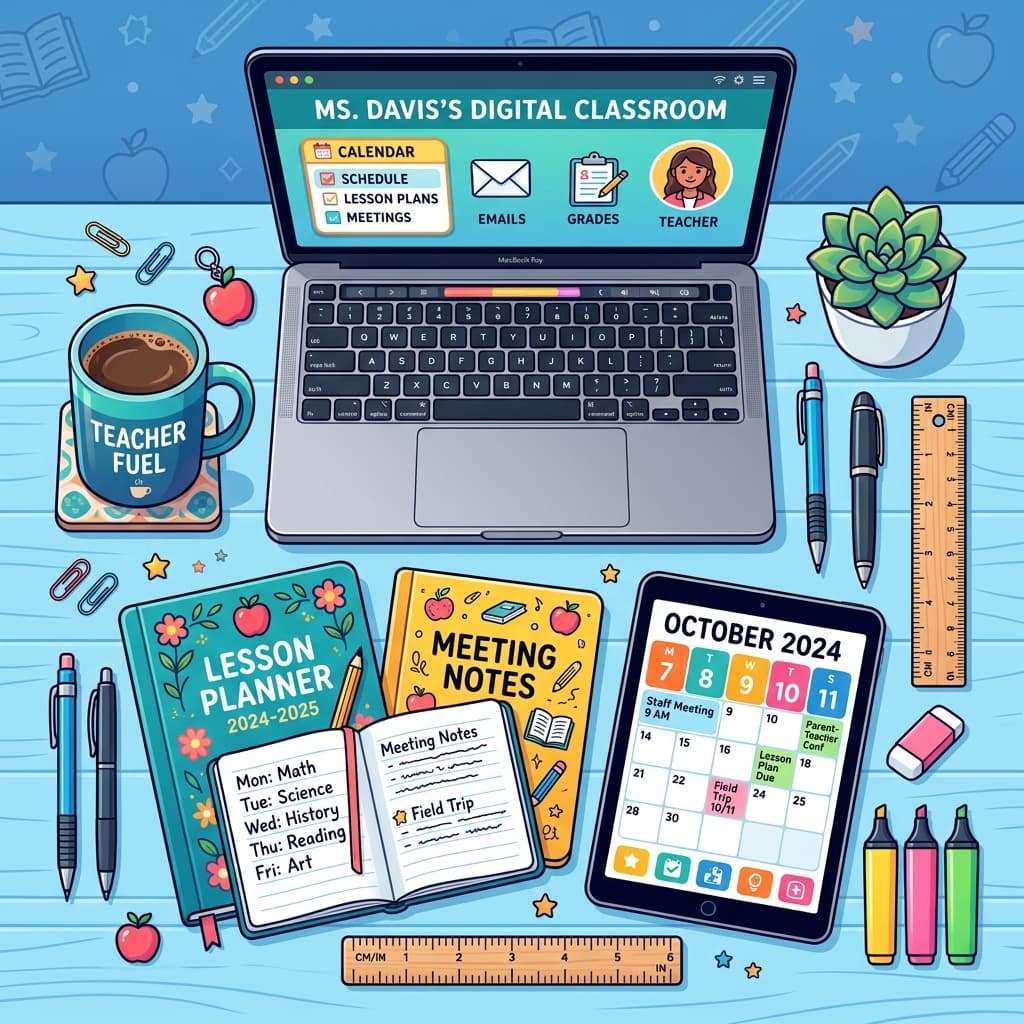
The Modern South African Classroom Challenge: Time vs. Quality
In any South African staffroom, from Limpopo to the Western Cape, the conversation is often the same: there simply aren’t enough hours in the day. Between the pressure of sticking to the Annual Teaching Plan (ATP), managing large class sizes, and fulfilling the administrative requirements set by the Department of Basic Education (DBE), teachers are often left with little time for creative lesson design.
PowerPoint has long been the "gold standard" for classroom presentations. However, we’ve all been there—spending three hours on a Sunday evening trying to find the right images, formatting text boxes, and ensuring the content aligns with the CAPS document, only for the lesson to be over in 45 minutes.
The goal isn't just to make a PowerPoint; it’s to create a learning experience that captures the attention of a Foundation Phase learner or a matriculant preparing for finals. To do this efficiently, we need to stop thinking of PowerPoint as a digital chalkboard and start seeing it as a component of a wider, AI-enhanced ecosystem.
In this guide, we will explore how you can leverage the suite of tools at SA Teachers to slash your preparation time while significantly increasing student engagement.
Stop Starting from Scratch: The Blueprint Phase
One of the biggest time-wasters is staring at a blank white slide. Most teachers start by opening PowerPoint and typing "Lesson 1." This is a mistake. To create lessons faster, you need a blueprint before you ever touch a design tool.
Use the CAPS-Aligned Lesson Planner
Before you design a single slide, use the CAPS-Aligned Lesson Planner on sateachers.co.za. Why? Because the curriculum is your roadmap. Instead of flipping through thick textbooks to find specific objectives, this tool allows you to input your subject and grade level to generate a structured outline that adheres to DBE standards.
By generating a lesson plan first, you have your slide titles ready.
- Slide 1: Introduction & Prior Knowledge (Hook)
- Slide 2: Lesson Objectives (What we are learning today)
- Slide 3-5: Core Content (The "Meat")
- Slide 6: Guided Practice
- Slide 7: Independent Activity/Assessment
- Slide 8: Summary & Conclusion
Having this structure means you are simply "filling in the blanks" rather than wondering what comes next.
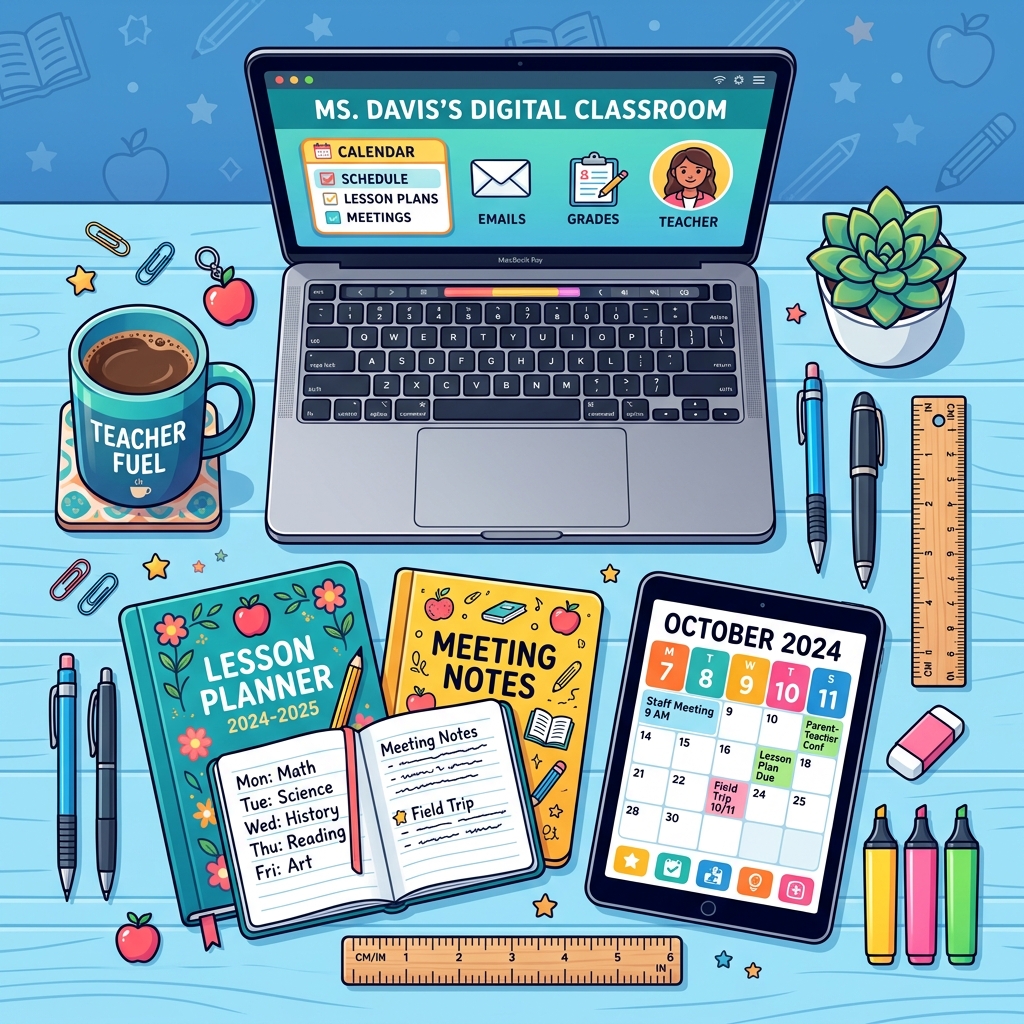
Design Principles for Maximum Impact (and Minimum Effort)
South African classrooms often face unique challenges: bright sunlight hitting the board, varying levels of English First Additional Language (EFAL) proficiency, and students at the back of a large room who need to see clearly.
1. The 6x6 Rule
Never put more than six bullet points on a slide, and never more than six words per bullet point. This prevents "Death by PowerPoint." If you have a lot of text, don't put it on the slide; put it in a worksheet. You can use the Worksheet & Exam Generator on SA Teachers to create a supplementary handout in seconds. Let the slide be the visual cue, and the worksheet be the detailed reference.
2. High Contrast and Legibility
Use dark text on light backgrounds or vice-versa. Avoid "busy" backgrounds that distract from the content. Stick to standard, clean fonts like Calibri, Arial, or Open Sans. For Foundation Phase teachers, use fonts that mimic the handwriting styles taught in South African schools (like "SchoolHand").
3. Visuals Over Verbiage
A picture of the Great Zimbabwe ruins is far more effective than a paragraph describing them. Use high-quality images that resonate with the South African context. When students see familiar landscapes or local examples, their engagement levels spike.
Integrating AI Tools to Generate Content
The secret to speed is not typing; it’s curating. SA Teachers provides specific tools that can generate the "raw material" for your slides.
The Study Guide Creator for Content Summarisation
If you are teaching a complex topic—for example, the "Causes of the French Revolution" in Grade 12 History or "Mitosis" in Life Sciences—you can use the Study Guide Creator.
By inputting the core topic, the tool generates a concise, easy-to-read summary. You can copy and paste these summaries directly into your PowerPoint slides. This ensures the language is grade-appropriate and focused on what will actually be examined, saving you hours of manual summarisation.
The AI Tutor for Q&A Slides
Interactive lessons are faster to teach because the students are doing the work. Use the AI Tutor tool to generate "Think-Pair-Share" questions.
Example: "If you are teaching Grade 10 Business Studies on Entrepreneurship, ask the AI Tutor to generate five common challenges faced by South African small businesses."
Drop one of these questions every three slides to keep the class focused.
AI Education Tutor
Personalized AI coaching for your specific teaching needs.

Creating Interactive Assessment Slides
A great PowerPoint shouldn't just be a one-way stream of information. It should include moments of check-in and assessment.
Linking to the Worksheet & Exam Generator
As you reach the end of a section in your presentation, you need to transition into practice. Instead of manually writing out questions on a slide, use the Worksheet & Exam Generator.
- Generate a 10-question quiz based on the ATP for that week.
- Take a screenshot of the first two "warm-up" questions.
- Paste them into your PowerPoint.
- Tell the students: "The first two are on the board, the rest are in the worksheet I’m handing out now."
This creates a seamless flow from direct instruction to independent work, which School Management Teams (SMTs) look for during classroom observations.
Displaying Rubrics for Transparency
For subjects like English or Afrikaans where essays are a major component, use the Essay Grader & Rubric Creator. When you are explaining a creative writing task in your PowerPoint, display the rubric you generated on the final slide.
When students see exactly how they will be graded (e.g., "Content & Planning: 15 marks"), it reduces "learned helplessness" and results in better submissions.
Technical Hacks for Speed
1. Use the "Slide Master"
If you want the school logo and the date on every slide, don't paste them 20 times. Go to View > Slide Master. Anything you put here will appear on every slide automatically. This keeps your presentation looking professional and uniform with zero extra effort.
2. SmartArt for Diagrams
Don't draw arrows and boxes manually. Use the "Insert > SmartArt" feature to create flowcharts, cycles, and hierarchies. This is particularly useful for Geography (the water cycle) or Life Sciences (food chains). It looks professional and takes seconds to set up.
3. Keyboard Shortcuts are Your Best Friend
- Ctrl + D: Duplicate a slide (faster than Copy/Paste).
- Ctrl + K: Insert a hyperlink (great for linking to YouTube videos or DBE resources).
- F5: Start the presentation.
- B or W: While presenting, press 'B' to black out the screen or 'W' to white it out. This brings the students' attention back to you during a discussion.
Bridging the Gap: From Presentation to Reporting
One often-overlooked aspect of lesson planning is the follow-up. How do you know the PowerPoint was effective? This is where the feedback loop comes in.
After delivering your lesson, you’ll likely have a stack of marked work. By using the Essay Grader & Rubric Creator, you can quickly identify which students struggled with the concepts presented in your slides.
When it comes to the end of the term, use the Report Comments Generator on sateachers.co.za. Because your lessons were structured around the CAPS-Aligned Lesson Planner, your reporting becomes much easier. You can specifically comment on a student's grasp of "Section A of the ATP" because your PowerPoints were perfectly aligned with those requirements from the start.
Classroom Scenario: The "Emergency" Lesson
Let’s look at a real-world scenario. It’s Tuesday morning. You’ve just found out you need to cover a colleague's Grade 9 Natural Sciences class on "The Solar System," a topic you haven't taught in a year.
- Minute 1-3: Go to SA Teachers and use the CAPS-Aligned Lesson Planner for Grade 9 Natural Sciences. It gives you the key concepts: planets, gravity, and the scale of the universe.
- Minute 4-7: Use the Study Guide Creator to generate a "Fast Facts" list for each planet.
- Minute 8-10: Open PowerPoint. Use a "Dark Space" template. Paste the facts.
- Minute 11-13: Use the Worksheet Generator to create a quick "Label the Planets" activity.
- Minute 15: You walk into the classroom with a professional, curriculum-aligned presentation and a printed activity.
Without these AI tools, you would likely have spent 45 minutes just trying to remember the order of the planets or finding a textbook. With them, you are ready in 15.
Conclusion: Working Smarter, Not Harder
South African teachers are among the most resilient in the world, but resilience shouldn't mean burnout. Creating engaging PowerPoint lessons doesn't have to be a midnight chore. By shifting the heavy lifting of content generation and curriculum alignment to the AI tools at sateachers.co.za, you free up your mental energy for what matters most: teaching.
The next time you sit down to create a presentation, remember the workflow:
- Plan with the CAPS-Aligned Lesson Planner.
- Summarise with the Study Guide Creator.
- Assess with the Worksheet Generator.
- Refine with the Essay Grader and Report Comments Generator.
By integrating these tools, you aren't just making slides; you are building a robust, professional, and highly effective teaching programme that meets the standards of the Department of Basic Education while keeping your students inspired and engaged.
Ready to reclaim your weekends? Head over to SA Teachers and start using these tools today. Your future self (and your students) will thank you.
SA
Dedicated to empowering South African teachers through modern AI strategies, research-backed pedagogy, and policy insights.