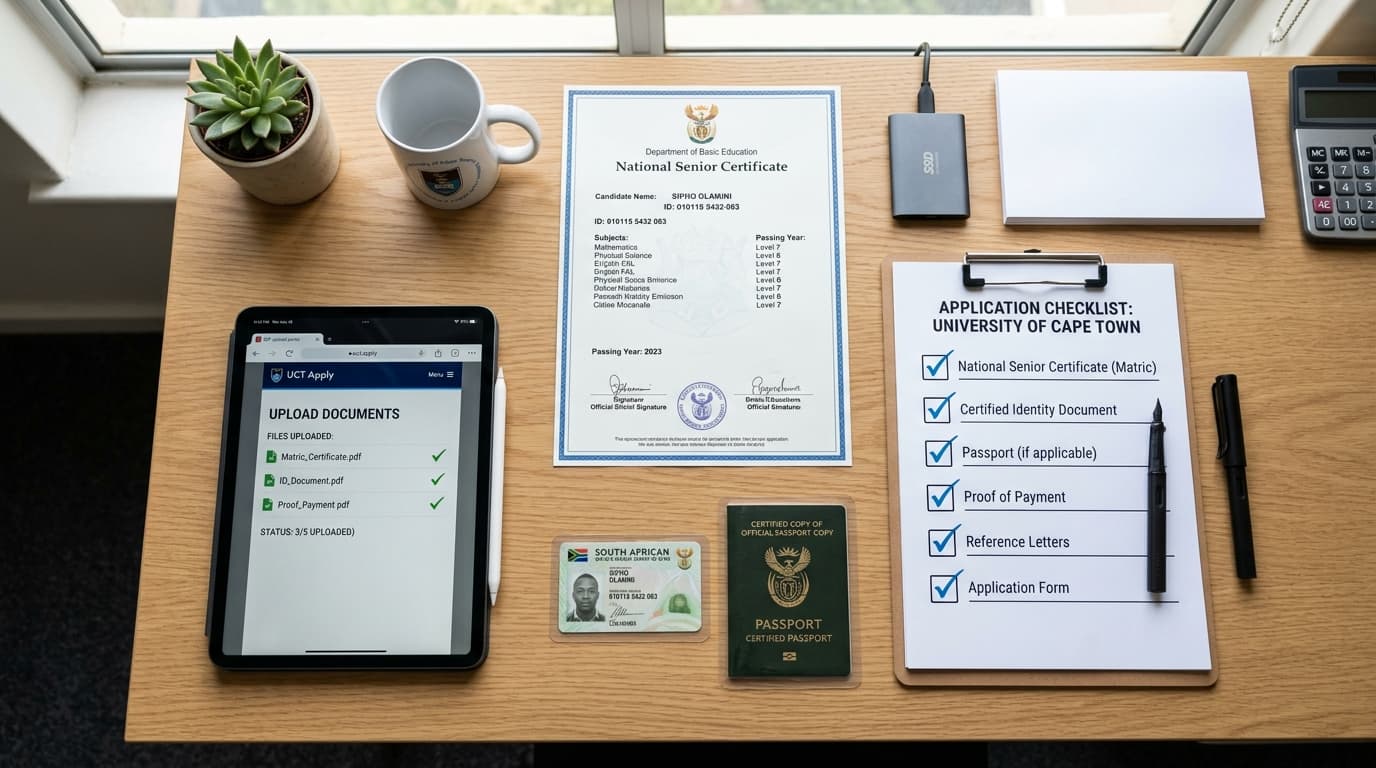
Submitting your electronic forms and uploading your certified documents to apply at UNISA is a moment of immense relief. You have selected your qualifications, paid your application fee, and taken an intentional step toward transforming your career. But for hundreds of thousands of South African applicants, the subsequent phase—the waiting period—proves to be the most anxiety-inducing chapter of the entire admissions journey.
Weeks can turn into months with silence from the university servers. You watch peers receive SMS notifications, wonder whether your payment cleared, and worry that an unreadable PDF scan might have derailed your academic future. In this high-stakes environment, knowing how to track your progress, interpret institutional status codes, and take immediate corrective action is vital.
This detailed troubleshooting handbook provides a comprehensive walkthrough on how to perform an apply at UNISA status check, decodes every official status message you may encounter on the portal, explains how to lock in your offer before it expires, and outlines the formal appeals process if your initial application is rejected.
1. Understanding the UNISA Admissions Assessment Timeline
Before checking your status daily, it is important to understand the administrative volume handled by the University of South Africa. As the premier distance learning institution on the continent, UNISA processes in excess of 400,000 undergraduate and postgraduate applications during each annual admissions intake.
Standard Processing Timeframes
- Document Ingestion and Payment Clearance: 3 to 7 business days from the date of payment.
- Biographical and Document Verification: 4 to 8 weeks during the peak application period (September to November).
- Academic Merit and APS Scoring: Conducted throughout November and December.
- Final Admissions Offers for Grade 12 Learners: Issued in mid-January, within 48 to 72 hours of the Department of Basic Education releasing the official National Senior Certificate examination results.
- Admissions Decisions for Completed Matriculants / Tertiary Transfers: Rolling releases between late October and late January.
Understanding this macro-timeline prevents unnecessary panic during September and October when applications are queued in bulk for systematic verification.
2. Step-by-Step Guide: Accessing the Status Check Tool
Checking your application status is completely free and accessible 24 hours a day on the official UNISA website. You do not need to call a call center or visit a physical campus simply to check where your file stands.
graph TD
    A[Visit Official Admissions Portal] -->|myadmin.unisa.ac.za| B[Navigate to Application Status Tool]
    B --> C[Enter 8-Digit Student Number]
    C --> D[Enter Full Legal Surname]
    D --> E[Enter Date of Birth YYYY-MM-DD]
    E --> F[Click 'Continue' to View Status Dashboard]
    F --> G{Review Status Output}
    G -->|Offer of Admission| H[Accept Offer Within 10 Days]
    G -->|Documents Outstanding| I[Upload Fresh PDF Scan Promptly]
    G -->|Under Assessment| J[Check Weekly for Updates]
    G -->|Unsuccessful| K[Review Appeals or Higher Certificate]
The Exact Navigation Steps
- Open a secure web browser on your phone, tablet, or laptop and visit the official UNISA status tracking portal:
https://myadmin.unisa.ac.za/tool/unisa-applications/status(Alternatively, visitwww.unisa.ac.za, click on Admissions, and select Check Application Status). - Enter your unique 8-digit Student Number issued to you when you applied.
- Enter your Surname exactly as it was spelled on your application form.
- Enter your Full Date of Birth using the dropdown selectors (Day, Month, Year).
- Click the blue Continue button.
The system will load your dedicated Applicant Status Dashboard, displaying your first-choice qualification, your second-choice qualification, and the real-time administrative status for each program.
3. The Complete UNISA Status Code Decoder
When your status screen loads, you will be presented with specific institutional phrasing. Below is an exhaustive breakdown of what each status means and the exact action required on your part:
1. "Application Received - Awaiting Payment"
- Meaning: Your online application data was saved on the system, but the university has not yet matched your R140 application fee to your profile.
- Action Required: If you paid via credit card online, wait 24 to 48 hours. If you paid via EFT or bank deposit, ensure that you used your correct 8-digit student number as the reference. If more than 7 working days have elapsed since payment, email your proof of payment (
feeapplications@unisa.ac.za) with your student number in the subject line.
2. "Application Received - In Processing"
- Meaning: Your payment has cleared successfully, and your digital dossier has been placed in the verification queue.
- Action Required: None. Your file is in line for review by an admissions officer.
3. "Under Assessment by Admissions Office"
- Meaning: An admissions officer or automated verification system is actively scrutinizing your uploaded PDF documents, confirming Umalusi or matric certification, and calculating your official Admission Point Score (APS).
- Action Required: Check the portal once a week to ensure no document flags appear.
4. "Documents Outstanding / Incomplete Documentation"
- Meaning: High Priority Alert. One or more of your uploaded files were rejected. Common causes include uncertified photocopies, certification stamps older than three months, blurry or unreadable scans, missing pages of an academic transcript, or files uploaded in an unsupported format.
- Action Required: Click on the status alert to see which specific document was flagged. Immediately obtain a fresh, clear, certified black-and-white scan (PDF format, under 2MB) and upload it through the Upload Outstanding Documents portal. You typically have 5 to 10 working days to rectify this before your application is formally cancelled.
5. "Awaiting Final Grade 12 Results"
- Meaning: You applied while still completing matric. Your provisional assessment indicates that your Grade 11 marks meet entrance minimums, but your final admission is contingent upon your official National Senior Certificate examination results in January.
- Action Required: Focus on your final exams. Once the Department of Basic Education publishes the results in January, Umalusi transmits the data directly to UNISA’s automated admissions engine.
6. "Offer of Admission Made (Action Required)"
- Meaning: Congratulations! You have met all statutory and faculty entrance criteria, and a formal space has been allocated to you in your chosen qualification.
- Action Required: You must accept the offer online within 10 calendar days. Failure to accept within this window will cause the system to automatically revoke your offer and reassign your seat to a waiting-list applicant.
7. "Unsuccessful - Academic Criteria Not Met"
- Meaning: Your final matric results or post-school qualifications did not meet the minimum Admission Point Score (APS) or subject-specific requirements for that particular qualification (e.g., scoring 45% in Mathematics when the degree requires 60%).
- Action Required: Check the status of your second-choice qualification. If both choices are unsuccessful, explore alternative entry pathways such as enrolling in an NQF Level 5 Higher Certificate.
8. "Unsuccessful - Space Constraints / Quota Exceeded"
- Meaning: You met the minimum academic requirements, but the faculty received more qualifying applications than the maximum student enrollment quota approved by the Department of Higher Education and Training (DHET). Spaces were awarded to applicants with higher competitive APS totals.
- Action Required: Check your second-choice program or consider submitting an admissions appeal if your APS is substantially higher than the baseline.
Study Guide Creator
Transform your notes into structured study guides for learners.
4. How to Accept Your Offer of Admission
Receiving an offer is the most critical juncture of your application journey. Under no circumstances should you assume that receiving an admission SMS means your seat is permanently reserved.
[Receive SMS/Email: "UNISA has made you an offer"]
                         ⬇
[Log in to myadmin.unisa.ac.za/tool/unisa-applications/status]
                         ⬇
[Review Qualification Details & Academic Year]
                         ⬇
[Click 'ACCEPT OFFER' Button]
                         ⬇
[Confirm Your Acceptance on the Confirmation Screen]
                         ⬇
[Download and Save the Formal Acceptance Letter PDF]
                         ⬇
[Await Registration Dates to Select Modules]
Step-by-Step Acceptance Protocol
- Access the status tracking portal using your student number, surname, and date of birth.
- Locate the qualification displaying the green "Offer Available" notification.
- You will see two options: Accept Offer or Decline Offer.
- Click Accept Offer.
- A legal confirmation screen will appear outlining your student rights, responsibilities, and code of conduct. Confirm your acceptance.
- The screen will refresh and generate a formal Letter of Admission. Save this document as a PDF and print a physical copy for your records.
Warning on Multiple Offers: If you receive an offer for your second choice qualification first, you can accept it. If your first choice later issues an offer before registration closes, the system will allow you to upgrade your acceptance to your primary degree choice. However, declining a second choice in the hope that a first choice might open is extremely risky and can leave you with no university placement.
5. What to Do If Your Application Is Stuck or Delayed
What happens if the calendar turns to mid-December or January, and your status remains indefinitely suspended on "Under Assessment" or "Application Received"?
Practical Escalation Steps
- Verify Documentation and Payment First: Double-check that your application fee receipt was acknowledged and that no small red warning icons appear next to your uploaded files.
- Submit an Electronic Enquiry via the Admissions Helpdesk:
- Send an email to:
admissions@unisa.ac.zaand your specific college email (e.g.,educare@unisa.ac.zafor Education,cems@unisa.ac.zafor Commerce,cset@unisa.ac.zafor Science). - Subject Line Formula:
ADMISSION STATUS QUERY - Student Number - Full Names - Qualification Name - In the body of the email, state your student number, identity number, the date you applied, and attach your proof of payment and certified ID.
- Send an email to:
- Visit a UNISA Regional Centre: UNISA operates regional campuses across all nine provinces (e.g., Sunnyside Campus in Pretoria, Durban Regional Hub, Parow Campus in Cape Town, Polokwane, Mbombela, Gqeberha, Bloemfontein). Regional student advisors have direct intranet terminal access to the central admissions mainframe and can view the internal reviewer notes on your file.
6. How to Lodge a Formal Admissions Appeal
If your application to apply at UNISA was rejected, but you believe an administrative error occurred, you have the statutory right to lodge an admissions appeal.
Legitimate Grounds for an Appeal
- Calculation Error: An admissions assessor miscalculated your matric marks or counted Life Orientation incorrectly, lowering your official APS below the qualification cutoff.
- Omitted Qualifications: You submitted an official academic transcript from a prior university that was overlooked during the assessment.
- Remark Upgrades: You applied for a matric paper remark through the Department of Basic Education, and your revised higher marks now push your APS above the required threshold.
Non-Legitimate Grounds for an Appeal
- Simply wanting to study the degree despite scoring beneath the statutory minimum criteria.
- Pleading personal or financial hardship (admissions committees are bound by academic criteria and cannot lower ministerial standards).
How to Submit an Appeal
- Visit the UNISA appeals portal (active during January and February).
- Complete the online Application for Admission Appeal Form.
- Attach your written motivation letter explaining the exact nature of the administrative discrepancy.
- Attach certified supporting documentation (e.g., your revised Umalusi statement of results or stamped registrar transcript).
- Appeals are reviewed by the College Admissions Appeals Committee, with outcomes communicated via email within 10 to 14 working days.
7. Next Steps After Acceptance: Claiming Your MyUNISA Account
Once you have successfully accepted your offer of admission, your status changes to Accepted Applicant. Your final preparatory task before formal semester module registration is claiming your digital student profile:
- Visit
my.unisa.ac.za. - Click on Claim UNISA Login on the login banner.
- Enter your assigned 8-digit Student Number and national ID number.
- Follow the identity prompts to set up your primary password and security questions.
- The system will issue you your official lifetime university email address:
studentnumber@mylife.unisa.ac.za
All future academic study guides, lecturer communications, assignment return memos, and exam schedules will be routed exclusively to this MyLife inbox.
8. Summary Checklist for Application Status Tracking
Keep your admissions journey organized with this final operational summary:
- I check my application status once every 7 to 10 days on the official portal.
- My cellphone maintains active SMS service and my email inbox is monitored daily.
- Any document flagged as "Outstanding" is rescanned and uploaded within 5 working days.
- When an offer is received, I log in and click "Accept Offer" within the 10-day deadline.
- I have claimed my MyUNISA login and secured my student credentials.
Taking the step to apply at UNISA demonstrates vision and ambition. By tracking your status with vigilance, responding decisively to official communications, and navigating the portal with technical precision, you ensure that your pathway into higher education is smooth, successful, and empowering. Check your status today, take ownership of your application, and step confidently toward your graduation day.
Siyanda. M
Dedicated to empowering South African teachers through modern AI strategies, research-backed pedagogy, and policy insights.